I got an iPad. Welcome to 1990.

I’ve been a fan of computers for longer than I care to remember, since Majel Barrett (Roddenberry) was the voice of a talking computer on the Starship Enterprise. Before the days of MS-DOS. When the punch-card reader was still a valid input device. The first computer I owned was a TRS-80.

iPad 2 interface, circa 2011

A couple of years ago I was introduced to the iPhone 3G and immediately had to have one. I’ve been using these little iOS devices ever since, my current collection includes a jailbroken iPhone 4 and an iPad 2. One thing that’s striking about iDevices is their ease of use. From the first touch, I was somehow already familiar with the interface, though at the time I did not realize why.

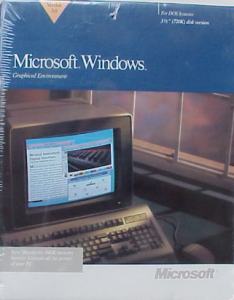
Windows 3.0 Retail Box, circa 1990

Recently while sorting the bookshelf I came across a copy of Microsoft Windows 3.0 I bought on launch day back in 1990. Then the realization hit me. If you are old enough to remember Windows 3.0 and its Program Manager, you will instantly understand why the iPhone’s interface seems familiar. It’s because twenty years later, the typical smartphone interface is roughly equivalent to Windows 3.0 running DOS-based applications. Consider these striking similarities between Windows 3.0 and iOS 4:

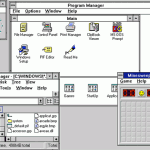
Windows 3.1 interface, circa 1991

Windows 3.1 interface, circa 1991

  • All the icons are found on a central screen or in folders on that central screen (iOS prior to 4.x didn’t have folders).
  • You can only really run one thing at a time comfortably because every app takes up the full screen while it’s running.
  • Some things can run in background, but with few exceptions it’s arguable whether you could call what a minimized iPhone app does “running” in any true sense.
  • Neither runs Flash.

Sure, an iPhone has better graphics, it’s portable and has a touchscreen instead of a mouse and keyboard. But the actual way you get things done is so retro as to be laughable, when you think about it. The interface Apple calls “magical” today, Microsoft did twenty years ago, and has far surpassed since then.

Don’t get me wrong, I use the newest Windows, iOS, and MacOS X on a daily basis, and absolutely find good, valid uses for all of them. The current batch of portable devices are great, but it seems there is quite a long way to go before a phone or tablet can completely replace a “real” computer. I look forward to using the portable devices of the future, when they will inevitably catch up to and surpass their bigger cousins.

Posted in Apple iDevices, Computers, Technology | Leave a comment

White Shadow Icon Labels Theme

This Winterboard theme provides white text labels with shadowing for your icons.

Revision History:

  • 1.0 Initial release.
Posted in Cydia | Leave a comment

WeatherIcon for iPad Theme

This is a WinterBoard theme that resizes WeatherIcon so it displays correctly on the iPad. Requires WinterBoard, WeatherIcon and Weather.app installed on iPad.

Note: To get Weather.app on your iPad, use SSH or other method to copy it from the Applications folder on an iPhone. If you have an iPad2 you may install the iPad2 Weather package from the pepper.net repo.

Revision History:

  • 1.0-1 Dependencies maintenance.
  • 1.0 Initial release.
Posted in Cydia | Leave a comment

iPad LiveClock Themes

This is a collection of themes for LiveClock on the iPad. Since the iPad uses a slightly larger default icon size than the iPhone or iPod Touch, the existing LiveClock and associated themes will appear too small and distorted. These themes support the larger size and display correctly.

Requires Winterboard, LiveClock and MobileTimer.app installed on the iPad.

Note: To get MobileTimer.app on your iPad, use SSH or other method to copy it from the Applications folder on an iPhone. If you have an iPad2 you may install the iPad2 Clock package from the pepper.net repo.

Revision History:

  • 1.2-2 Corrected the alignment of some of the hands.
  • 1.1 Renamed themes; added “original” clock; added dependencies to auto-install LiveClock and Winterboard if not already installed.
  • 1.0 Initial release.
Posted in Cydia | Leave a comment

How to build and host a Cydia Repo

Over at JBQA I’ve seen the occasional query about how to host a Cydia Repository. Since I figured it all out and did it myself, I should go ahead and tell how I did it. I started by reading the very good article written by @Saurik and found some other bits and pieces elsewhere and by using the time-tested trial and error method.

Introduction

There are several things you have to do in order to host a Cydia repo. It is not really that hard. Believe it or not, I do a good portion of the setup and maintenance of my Pepper dot Net repo (www.pepper.net) directly on my iPhone.

A repository is simply a particular arrangement of files on a website, so the first thing you need is a website hosted somewhere. The only requirements are that it support HTTP on port 80, and has (or you can add) a defined MIME-type of ”application/x-deb” for .deb files.

You also need to know how to create and maintain package (.deb) files, and how to generate the Packages and Release files. In this article I’ll be covering all of this except for the actual package files, that will need another more detailed article all its own. In the meantime, you can read Saurik’s definitive article on the subject.

Requirements

Before this will work, you need the APT packaging system, this file and some implementation of Perl. If you’re going to do this on your iDevice, APT is already there as part of Cydia, and I get the perl package from CoreDev.nl.

Here’s an overview of the repo file structure. Simply create and upload each of these to your website. When everything is there you can add your repo to Cydia and hopefully everything will work.

Control files

The first three files should appear in the root folder of your website (technically the “root” of the URL you intend to use for the repo, it doesn’t have to be the “root” of the whole site).

  • CydiaIcon.png
    Use your favorite PNG editing program to create an icon. It will appear in Cydia (1.1 and later) next to your repo in the “Manage Sources” area.


  • Packages.bz2
    This file is generated from the individual control files of each of your packages and then compressed. It has a specific format that I won’t get into at this point, but the important thing to remember is you need to regenerate it any time you add, change or delete packages. The commands I use are:

    ./dpkg-scanpackages -m [name.of.repo.folder] /dev/null >Packages

    followed by

    bzip2 Packages
  • Release
    This is a plaintext file containing some basic information about your repo. The fields are self explanatory and there are additonal, optional fields. These few fields are plenty enough to get started. Among other things, this information determines part of what appears in the description of your packages when viewed in Cydia.
Origin: Pepper dot Net
Label: PepperdotNet
Suite: stable
Version: 0.3
Architectures: iphoneos-arm
Components: main
Description: Welcome to the experimental repository from www.pepper.net! @PepperdotNet on Twitter

Package Files

Put all of your packages (the .deb files) in the repo folder. While technically they could be in the root, I suggest a separate folder to keep things organized. It works best if the name of this folder is exactly the same relative to the root, as where the packages were when you generated the Packages.bz2 file relative to where you ran the command from.

As mentioned before, you’ll need to regenerate Packages.bz2 anytime you add, change or delete packages.

Conclusion

That’s about all you need to know to get started hosting your own Cydia repository. Good luck, and let me know in the comments area if you have any questions and something about your new repo!

Posted in Apple iDevices, Cydia, Technology | Leave a comment

iPad Missing Apps 4.3.x and 5.0.x

READ THIS! On iOS5, several of the apps (Clock, Stocks and Weather) require Siri or Spire to be installed (dependency on “gsc.assistant” error message).

Unless you have donated (nobody has yet, cheapskates), I will NOT answer any emails asking why some of these apps fail to install because they depend on “gsc.assistant” because you were too lazy to read this page.

More details below.

Here are the built-in iOS apps that for whatever reason, Apple forgot to include with your iPad.

  • Calculator
  • Compass
  • Clock
  • Stocks
  • Voice Control [Recommended only for advanced users, see special instructions below]
  • Voice Memos
  • Weather

All of these were ported from the iPhone 4 so they run as iPhone apps, 2x mode recommended.

Requires iPad or iPad 2.

IMPORTANT for iOS5: Until I figure out something different, Clock, Stocks, and Weather require Siri or Spire to be installed on the device. Siri does not have to be active or configured but it contains “something” required for these apps to run. The original Spire on the BigBoss repo cannot be installed on an iPad without some obscure technical knowledge, but there is a version without this restriction on several of the “pirate” repos such as “insanelyi” and “ihacksrepo” – of course like everything in the world these days, this is provided without warranty and you assume all risk.

Furthermore, the Weather gadget in the Notification Center is distorted. This is a known issue.

There is a set of apps that support iOS 4.3.x. and another that support 5.0.x. Please install the correct version. Voice Memos is not included for 4.3.x

Compass: Please choose the language(s) you need and the base package will auto-install. If you choose all languages the total is around 40.5 megabytes. If you already downloaded the older package that contained all languages, you don’t need to replace it.

Voice Control: See this video for more details. I have provided a package of required files for VoiceControl. After installing this, you need to edit /System/Library/CoreServices/SpringBoard.app/K93AP.plist and add the following in the “capabilities” section:

<key>voice-control</key>
<true/>

Revision History:

  • 4.3.3 Initial release, iPad2 only.
  • 4.3.3-1 Support for original iPad as well.
  • 5.0.1 Support iPad and iPad 2 on iOS 5.0 and 5.0.1

Legal disclaimer: It is assumed that you have access to both your iPad and an iPhone containing these apps. This is something you could do yourself by copying the apps over using SSH or other method. I am only providing the packages here as a convenience and will take them down at the slightest hint of any discomfort on Apple’s part.

Posted in Cydia | 2 Comments

attLogo Theme

This is a WinterBoard theme of the at&t logo which should work on all devices using the at&t US carrier. It replaces the text AT&T with a graphic that looks like this:

AT&T

This package might work better for some devices than the original one which does not require WinterBoard.

Revision History:

  • 1.0 Initial release.
  • 1.1 Compatible with iOS5 (tested on beta 6. There are some places where it reverts to the default, this is a known issue.)
Posted in Cydia | Leave a comment

Samba

This is the version of Samba found here but hosted for easy install: http://thebigboss.org/2009/05/22/calling-out-for-tester-samba-for-the-iphone

If you don’t know what Samba is already, best to just leave it alone.

Posted in Cydia | Leave a comment

MobileTerminal

There are a couple of versions of MobileTerminal hosted in the repository. The original 520-1 and a beta 364.3-12.

No support for either of these so you’re on your own.

Posted in Cydia | Leave a comment

FakeClockUp (tweak)

Accelerates UIKit transition animations. While this does not actually increase the clock speed of your device, it makes it just feel faster.

This is the known stable 0.1-1 version. There are a few newer ones out that break things.

Posted in Cydia | Leave a comment